Contents
Before you start
Training is a coach that lives on your Android phone. You tell it what you’re training for, and it builds a plan around your week, your kit and your health. On the day, it runs each session for you with big, clear screens and a voice in your ear. Afterwards it looks at what you actually did and suggests changes. Nothing changes unless you say yes.
The app keeps your training in your own intervals.icu account: your plan, your activities, your sleep and heart-rate data, and your weight. intervals.icu is a free training website. Because your data lives there, you can also see it all on a computer, and nothing is lost if you change phone.
What you need
- An Android phone.
- A free intervals.icu account. Sign up at intervals.icu if you don’t have one.
- Your intervals.icu Athlete ID and API key. The app uses these to read and write your training. To find them:
- Sign in at intervals.icu on a computer or in your phone’s browser.
- Open Settings.
- Scroll to Developer Settings.
- Note your Athlete ID. It starts with an “i”, for example
i123456. - Create or copy your API key.
- A watch or fitness tracker is strongly recommended. If it syncs to intervals.icu (Garmin, Suunto, Huawei and others can), your activities and overnight data arrive by themselves. If it doesn’t, for example a Samsung Galaxy Watch or a Fitbit, the app can collect its data through Health Connect (see Health data from your watch).
Optional extras
- A Bluetooth heart-rate strap or armband, for live heart-rate coaching on runs, walks and rides.
- A smart trainer: a Wahoo KICKR or KICKR Core, or any trainer that supports the Bluetooth FTMS standard (most Tacx and Elite models do). The app then sets the resistance for every step of a ride.
- A crank or pedal power meter (4iiii, Stages, Favero, Garmin and similar), for more accurate power on the trainer.
- A treadmill the app can control: a KingSmith WalkingPad (A1, R1 or R1 Pro), or any Bluetooth FTMS treadmill.
- A Wear OS watch, such as a Samsung Galaxy Watch, to see your session on your wrist.
- Bluetooth headphones, so you can hear the voice coach over your music.
The disclaimer
When you open the app, it shows a screen called Before you start. It says:
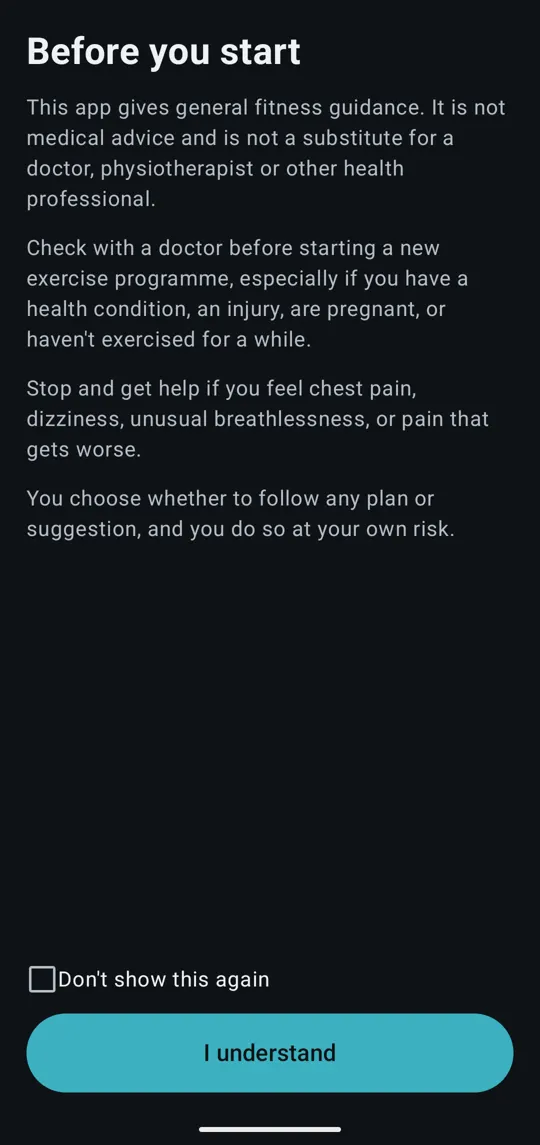
- the app gives general fitness guidance, not medical advice;
- check with a doctor before starting a new exercise programme, especially if you have a health condition, an injury, are pregnant, or haven’t exercised for a while;
- stop and get help if you feel chest pain, dizziness, unusual breathlessness, or pain that gets worse;
- you choose whether to follow any plan or suggestion, at your own risk.
Tap I understand to carry on. The screen appears every time you open the app until you tick Don’t show this again before tapping I understand.
If the wording of the disclaimer changes in a later version, you'll be asked to read and accept it once more.
First set-up
Connect intervals.icu
The first time you open the app, it asks you to Connect intervals.icu.
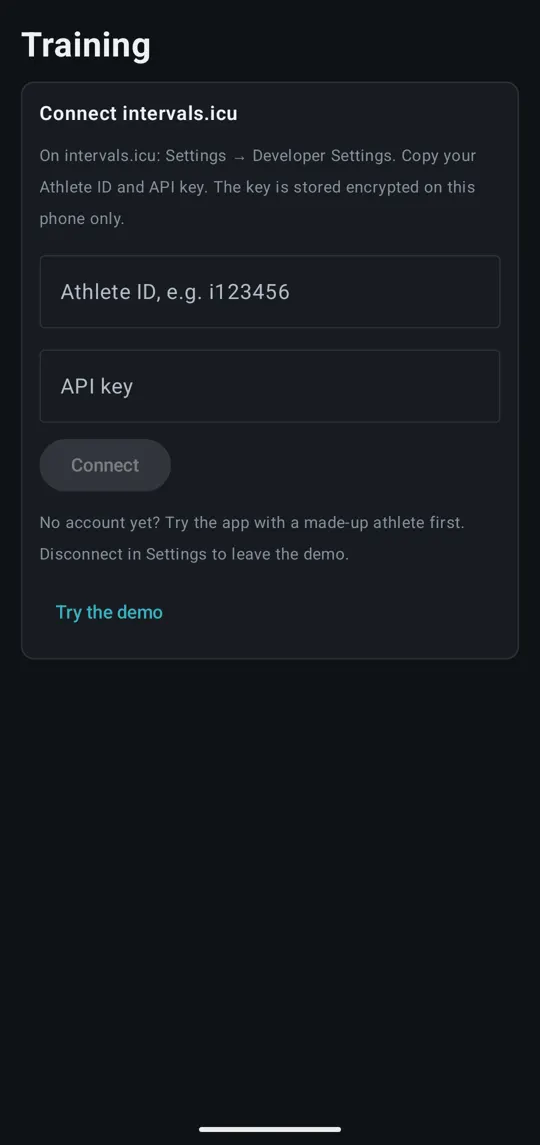
- Type your Athlete ID (for example
i123456). - Paste your API key.
- Tap Connect.
The app then fetches your year of training from intervals.icu. The first sync can take a moment; you’ll see “Fetching your year from intervals.icu…” while it works.
Your API key is stored encrypted on your phone. The app never shows it again, and it’s never included in backups.
Try the demo first
No intervals.icu account yet? Tap Try the demo on the same screen. The app fills itself with a made-up athlete, Alex, who has four months of training, a 10 km goal and a plan, so you can look around every screen and even start a session. Nothing is sent anywhere.
To leave the demo, go to Settings and tap Disconnect, then connect your own account. The screenshots in this manual come from the demo.
Syncing
Pull down on any screen to sync. “Syncing…” appears at the top while it works. Each sync:
- fetches your latest activities, sleep and heart-rate data, and plan from intervals.icu;
- sends anything waiting on the phone, such as rides you recorded while offline;
- reads your watch data from Health Connect, if you’ve connected it;
- checks your plan and may suggest changes (see Suggestions);
- saves today’s readiness and your meal suggestions to intervals.icu.
If you’re offline, the app shows the data from your last sync.
Tell the app your name
The voice coach uses your name. Go to Settings → Voice coach, type Your name and tap Save name. If you leave it blank, the app may use the first name from your intervals.icu profile.
Set your goal
Next, go to Settings → Your goal and tap Set your goal. This is the most important step: the goal decides what kind of plan you get. Your goal and your plan explains every option.
Open Settings
Settings isn’t one of the tabs at the bottom. Tap the ⚙ gear icon at the top right of any screen. Press your phone’s Back button to return to Today.
Finding your way around
The app has five tabs along the bottom: Today, Recovery, Fitness, Calendar and Meals. Tap a tab, or swipe left or right anywhere on the screen to move to the next one.
Today
Your day at a glance. The panels are:
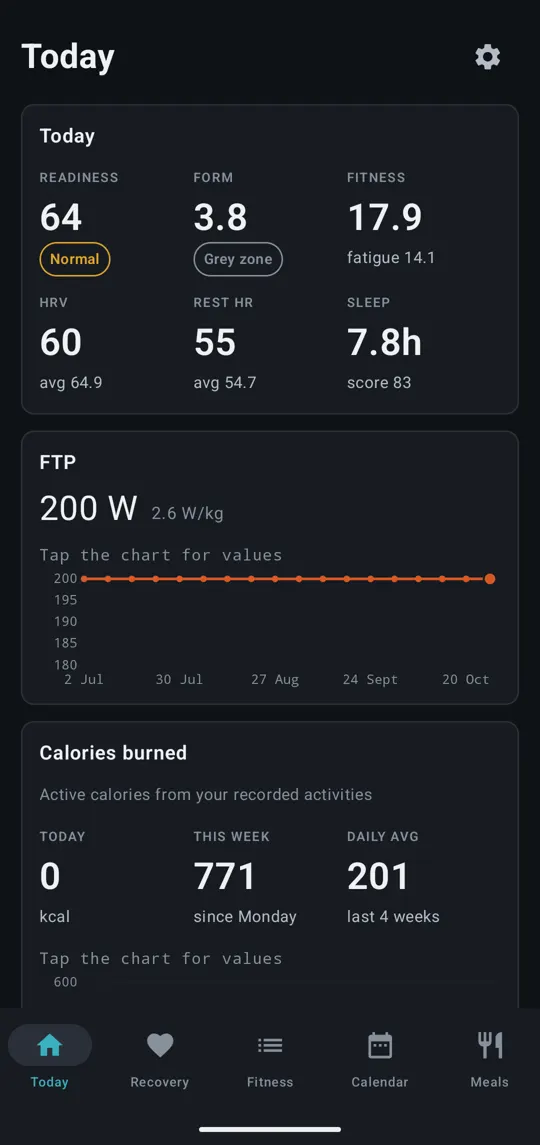
- Today: your Readiness score (0 to 100) with a label (Go, Normal or Take it easy), your Form, Fitness and fatigue, plus last night’s HRV, Rest HR and Sleep, each against your recent average.
- FTP (if you ride): your current FTP, your watts per kilo, a small chart of how it has changed, and “rides say …” when your recent rides suggest it has gone up.
- Calories burned: active calories today, this week and on average, from your recorded activities.
- Drink today: how much to drink, including what you’ve sweated (see Meals and weight).
- Fuel today: carbohydrate, protein and fat for the day, and calorie targets if you’re losing weight.
- What moved readiness: how much each of HRV, resting heart rate and sleep pushed today’s score up or down. The score starts from 70.
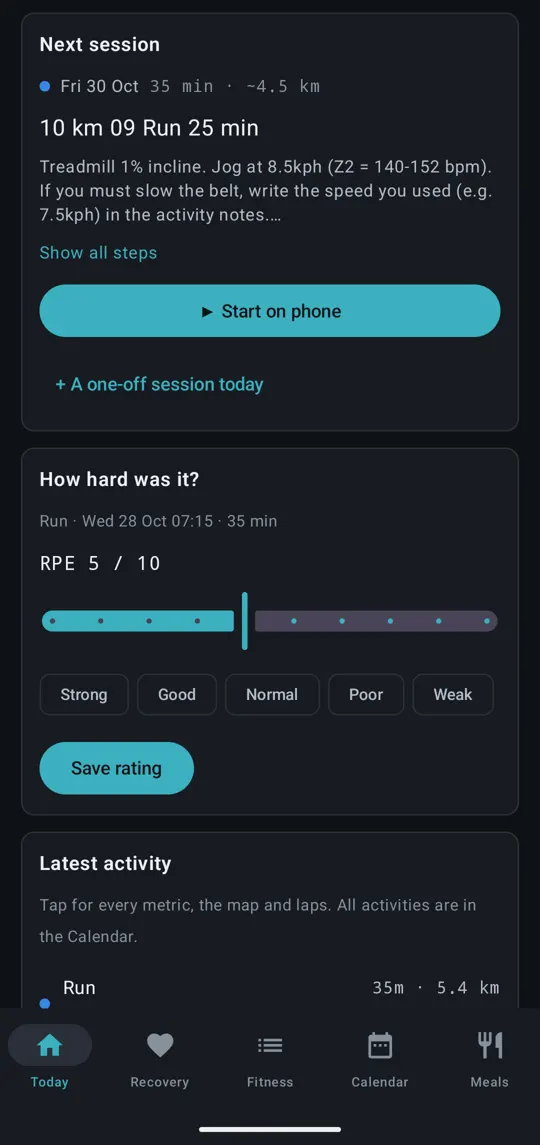
- Next session: your next planned session, its length and, for runs and walks, an estimated distance. Tap the description, or Show all steps, to see every step. Tap ▶ Start on phone to begin it (on a future day this reads ▶ Preview on phone). + A one-off session today adds an extra session (see One-off sessions).
- How hard was it?: appears for recent activities you haven’t rated. Move the slider to your effort (RPE, 1 to 10), optionally pick how you felt (Strong, Good, Normal, Poor or Weak), and tap Save rating. The rating is saved to intervals.icu.
- Latest activity: your most recent session. Tap it to open the full activity.
How readiness works
Readiness compares last night’s HRV, resting heart rate and sleep against your previous 7 days. A higher HRV, a lower resting heart rate and good sleep raise it. Very short nights (under 3 hours) are ignored. As a rule of thumb, 70 or more is good to go, 50 to 69 is normal, and under 50 means take it easy.
Recovery
Your overnight and body data:
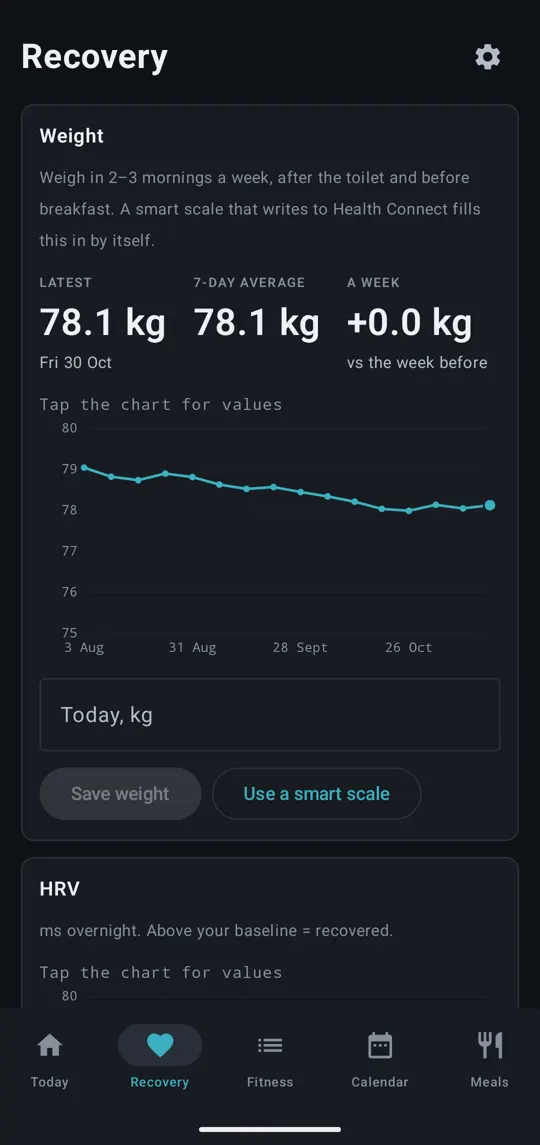
- Weight: when you have a weight goal or have logged weigh-ins (see Meals and weight).
- Blood pressure: only when you have readings, or have connected a source (see Connections).
- Iron: only when cycle tracking is on.
- HRV, Resting heart rate, Sleep patterns, Sleep, Steps and Every night (a table of each night, newest first).
- Under sleep: Sleep score (your watch’s own score), Sleep by night of the week, and What a short night costs you (under 7 hours against 7 or more, from your own nights).
Fitness
Longer-term trends and analysis: fitness and fatigue over 12 months, form, weekly load, hours and calories by sport, a daily load calendar, time in heart-rate zones, and panels such as Load spike, How fast fitness is building, Easy vs hard and Week variety. Under Performance you’ll find consistency, heart-rate recovery, heat effect, a 5K predictor, durability, personal records, the FTP estimate and Fitness age.
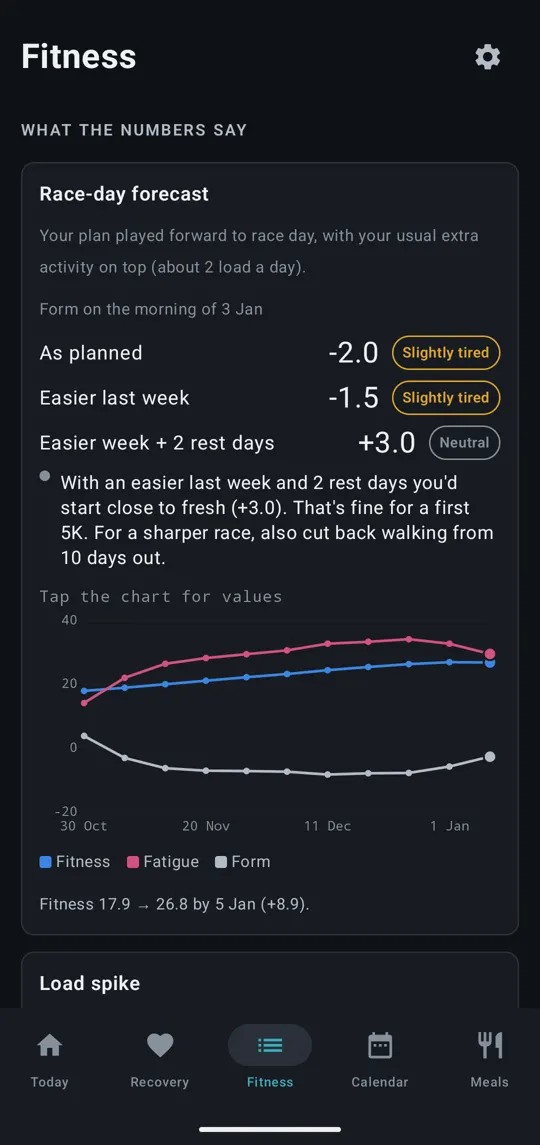
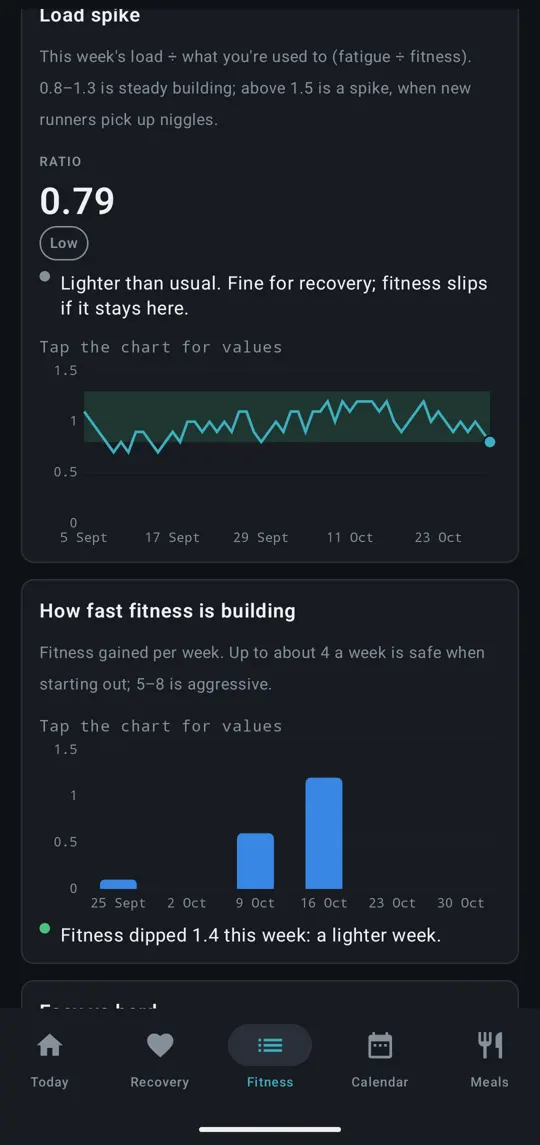
Some of the charts, by name:
| Panel | What it shows |
|---|---|
| Fitness and fatigue, 12 months | Fitness (your 42-day average load) and fatigue (7-day). Fatigue above fitness means you’re building. |
| Form, last 8 weeks | Fitness minus fatigue. The green band, −30 to −10, is productive training. |
| Weekly load by sport, Weekly hours by sport, Weekly calories by sport | Each week’s training load, moving time and active calories, split by sport. |
| Load by weekday | Your average load on each day of the week over 8 weeks: the days you actually train. |
| Walking efficiency | Metres covered per heartbeat on steady walks. Rising means your aerobic fitness is improving. |
| Readiness vs how sessions felt | Whether sessions feel harder after low-readiness mornings, tested on your own data. |
Fitness age compares your VO₂max with population averages. Enter your VO₂max today from your watch’s app once in a while, and set your date of birth in Settings.
Calendar
A month view of your training.
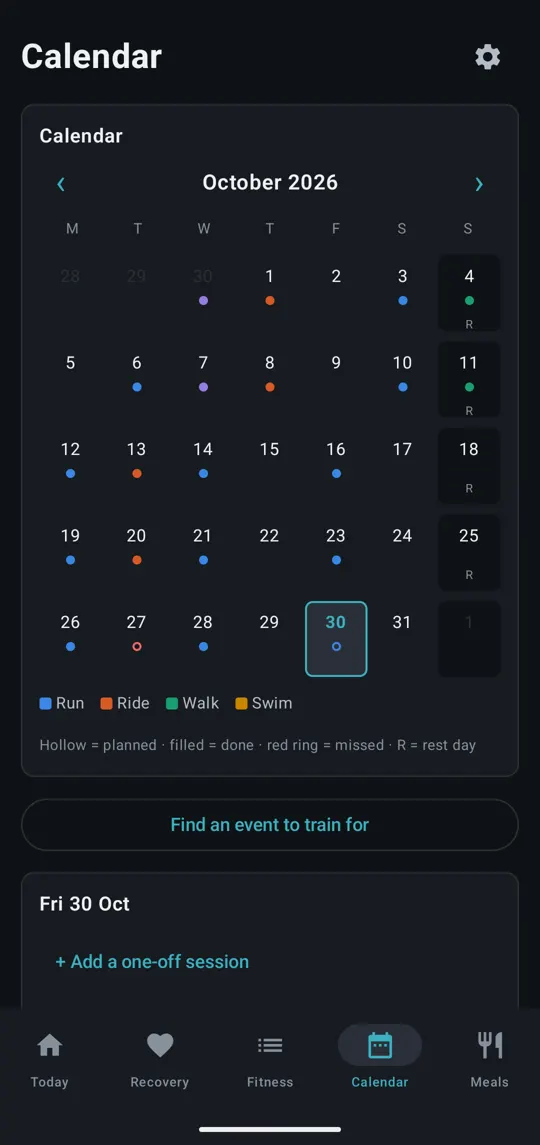
- Use ‹ and › to change month. Today jumps back to today.
- Coloured by sport: run, ride, walk and swim.
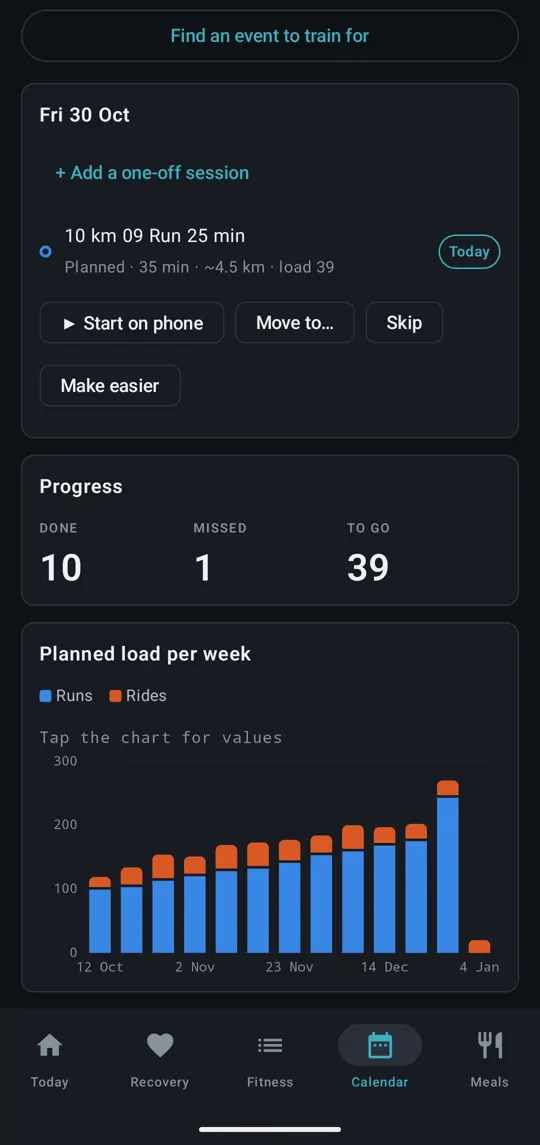
- Hollow circles are planned sessions, filled dots are activities you’ve done, a red ring is a missed session, and R marks a rest day.
- Tap a day to see its panel underneath.
In a day’s panel you can:
- tap an activity you’ve done to open it;
- tap a planned session to read its steps;
- ▶ Start on phone to begin it;
- Move to… and pick another day. The app shows every session that shifts as a result before you tap Apply;
- Skip it, after confirming with Skip it (some key sessions, such as the race itself, can’t be skipped);
- Make easier: a run becomes a repeat of your previous run’s session; a hard ride becomes an easy endurance ride;
- + Add a one-off session on any day from today on.
If you run on a rest day, the day’s panel offers to count it as your next planned run.
Below the month you’ll also find Find an event to train for (see Events to train for), your Progress (done, missed and to go) and Planned load per week.
The activity screen
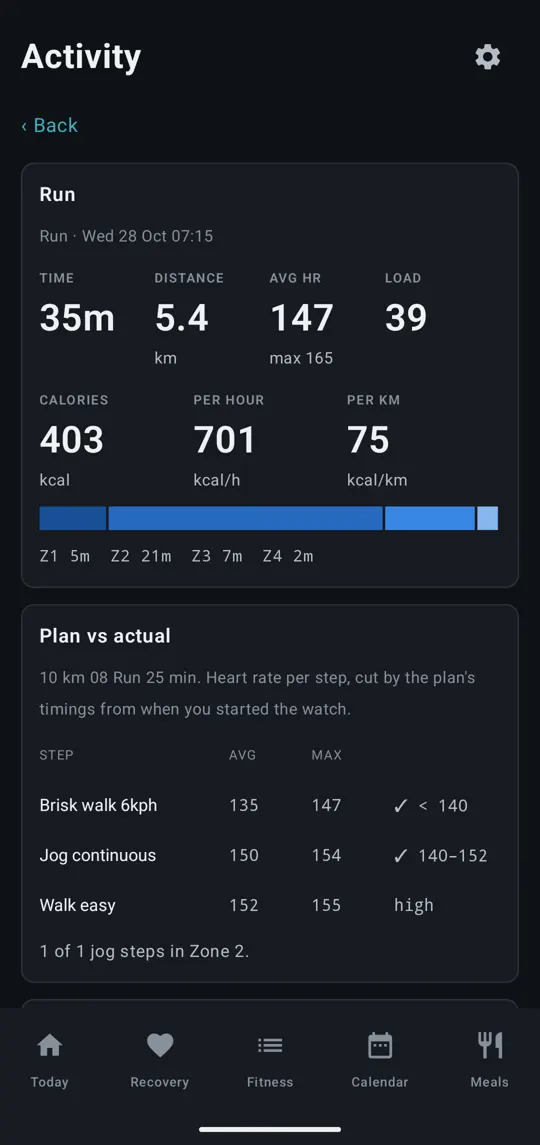
Opening an activity shows its route map (for outdoor activities), charts of heart rate, speed, power, cadence and Altitude, its laps and details. For planned runs, Plan vs actual shows your heart rate on each step against the plan. After a run it may suggest a new jog speed with Set jog speed to … kph. After a discovery run (see Your goal and your plan) it can offer Skip ahead to … so your plan starts at the right level.
Meals
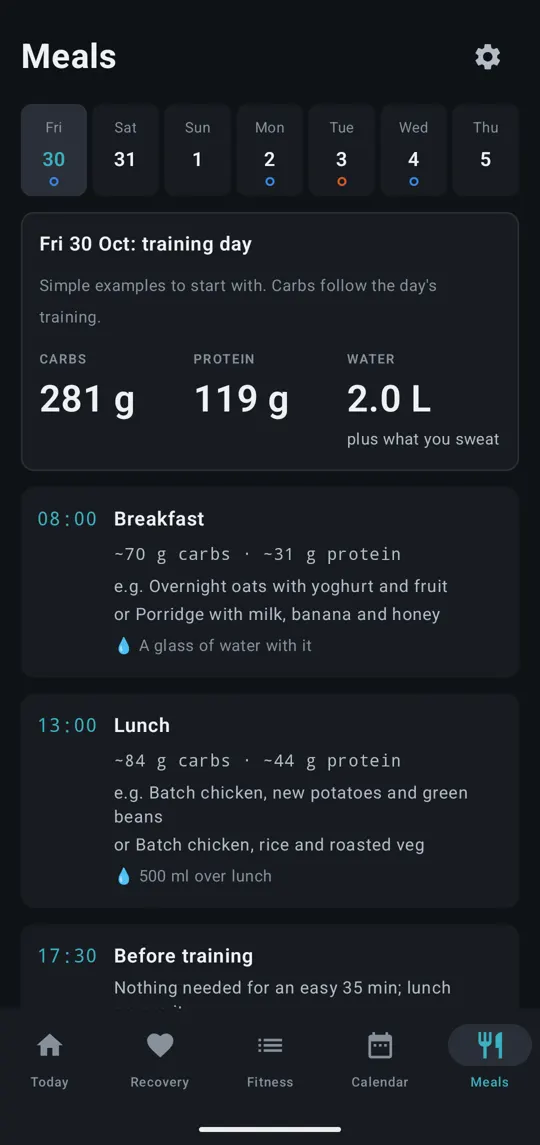
A strip of the next 7 days across the top, with the same dots as the calendar, and a timeline of meals and snacks for the selected day. See Meals and weight.
Rearranging panels
You can change the order of panels on Today and Recovery:
- Press and hold a panel until it lifts.
- Drag it up or down. The other panels move out of the way.
- Let go.
The order is remembered. Panels with nothing to show take no space. To go back to the original order, open Settings → Panel order and tap Reset panel order.
The home-screen widget
Add the Training widget to your home screen (press and hold an empty space on the home screen, then choose Widgets). It shows:
- today’s session, with jog speed, length and estimated distance;
- Rest day with your next session, or Done ✓ when you’ve finished;
- your readiness score and label;
- the countdown to your event, if you have one;
- this week’s sessions done, for example “This week 2/5”.
Tap the widget to open the app. If today’s run or walk is still to do, it opens straight into the session player. The widget refreshes every 30 minutes, just after midnight, and whenever the app syncs.
Your goal and your plan
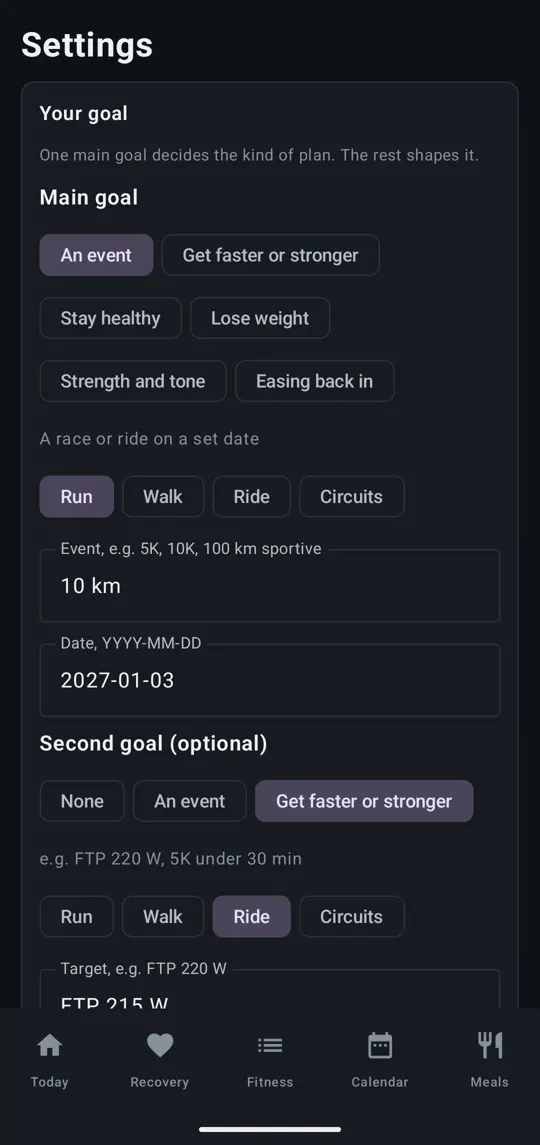
Go to Settings → Your goal. When a goal is saved, this panel shows a summary of it, plus three buttons: Change goal, Build plan and Delete plan.
Saving a goal doesn’t change your plan by itself. Use Build plan when you’re ready.
Main goal
Pick one:
| Main goal | What it’s for |
|---|---|
| An event | A race or ride on a set date. Pick the sport (Run, Walk, Ride or Circuits), type the event (for example “5K”, “10K” or “100 km sportive”) and the date. |
| Get faster or stronger | A performance target, such as “FTP 220 W” or “5K under 30 min”. A date is optional. |
| Stay healthy | No date: keep fit and consistent. |
| Lose weight | For example “lose 5 kg”. A date is optional. |
| Strength and tone | Strength sessions lead. Pick the body areas under Add-ons. |
| Easing back in | After an injury, once a doctor or physio has said you can exercise. Pick the area: Lower back, Knee, Hip, Shoulder or Ankle. |
Dates are typed as year-month-day, for example 2027-04-25.
Circuits means cardio with weights: loaded carries, kettlebells, step-ups, rowing and so on.
Second goal (optional)
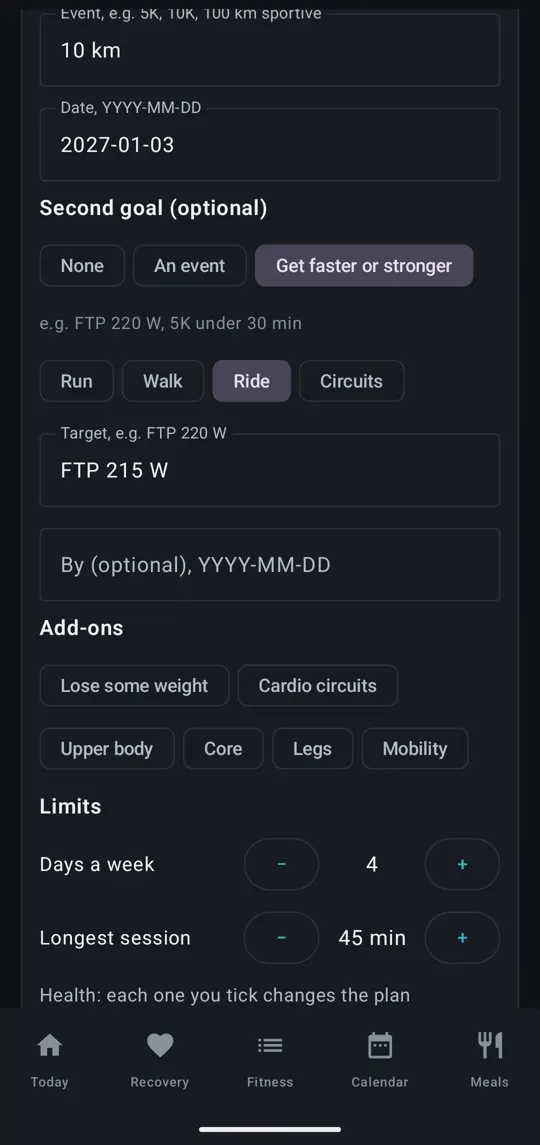
You can add a second goal: An event or Get faster or stronger. For example, a 5K run as the main goal plus an FTP target on the bike.
Add-ons
Tick any that apply:
- Lose some weight: adds a gentle calorie target (0.25 kg a week) on top of any goal.
- Cardio circuits: adds a circuits day each week (two if you train 6 or more days).
- Upper body, Core, Legs: add strength sessions focused on those areas, on 1 day a week (2 if you train 5 or more days).
Limits
- Days a week: 1 to 7.
- Longest session: 15 to 180 minutes. Long runs, rides, walks and strength sessions are capped at this.
- Health: tick any that apply (see Health ticks).
- No running (other reasons): turns runs into walks. (This option disappears when Knees or hips is ticked, because that already rules out running.)
- Where you train: Home, Gym and/or Outside.
- Equipment: Treadmill, Bike trainer and/or Weights. A treadmill puts belt speeds into your sessions, a bike trainer gives you controlled rides, and weights add dumbbell exercises.
- Anything else (optional): a free note. The plan builder doesn’t act on it.
- Easy sessions only until (optional): see Recovering from illness, surgery or injury.
- How long can you walk briskly today? (10 to 60 minutes): appears when your plan includes walks. Walks start from here.
- How long can you jog non-stop today?: appears when your plan includes runs. Choose Not sure, Not yet, or 1 to 30+ min. If you pick Not sure, the plan starts with a discovery run to find out.
- Treadmill jog speed: appears when you have a treadmill. This speed is written into every run.
Tap Save goal when you’re done.
Health ticks
Each tick changes your plan in a fixed way:
| Tick | What changes |
|---|---|
| Knees or hips | No running: walks replace runs and stay flat. No deep squats. |
| Back pain | No heavy hinges, overhead presses or loaded carries. More core work, and safer circuit stations. |
| Kidney stones | A higher daily fluid target (2.8 litres instead of 2) and moderate protein. |
| High blood pressure or heart medication | Easy and moderate efforts only: no ramp tests, threshold or VO2 work. If beta-blockers keep your heart rate low, go by feel (you should be able to talk). |
| Asthma | Longer, gentler warm-ups. Keep your inhaler with you. |
| Pregnancy | Moderate effort only, no exercises lying on your back, and no weight-loss calorie deficit. Check with your midwife or doctor. |
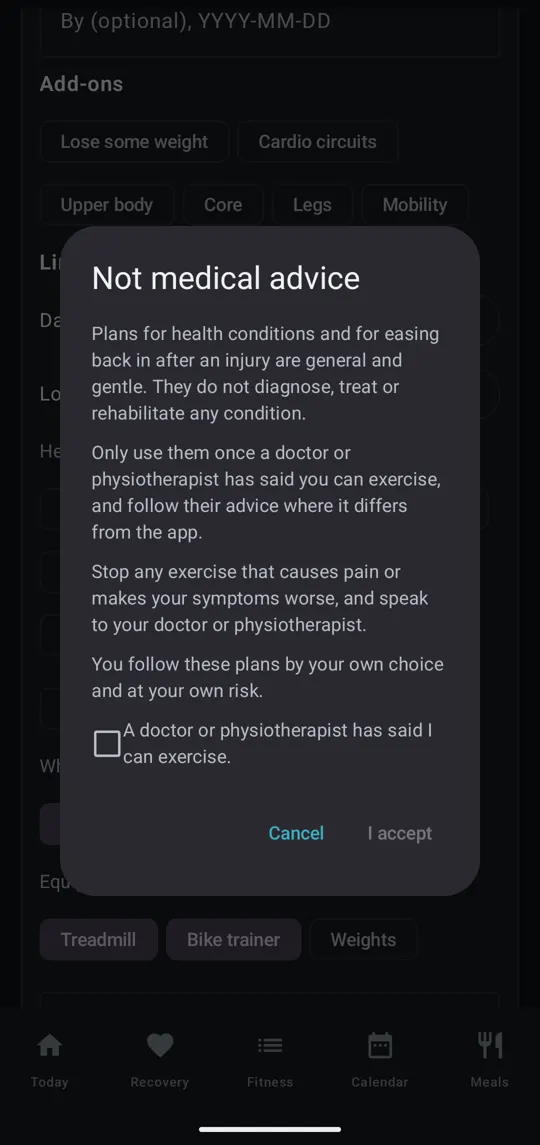
The first time you tick a health condition, or choose Easing back in, the app shows a second disclaimer called Not medical advice. It explains that these plans are general and gentle, and don’t diagnose, treat or rehabilitate anything. You must tick A doctor or physiotherapist has said I can exercise before I accept becomes available.
Running, walking and people who can’t run
If you can’t run, or don’t want to, walking is a full training option. Choose Walk as your event sport, tick Knees or hips, or tick No running (other reasons). A run event such as “10 km” then becomes a 10 km walk.
Walk plans rotate three kinds of session:
- a steady brisk walk, 5 minutes longer each week;
- intervals of 3 minutes brisk and 2 minutes easy;
- incline intervals on a treadmill, only when running isn’t ruled out. Otherwise walks stay flat.
Every fourth week is easier. On a treadmill, brisk is 6.0 kph and easy is 5.0 kph.
Run plans follow a ladder of run/walk sessions that builds towards 30 minutes of non-stop jogging, and longer runs for longer events. The ladder starts from the jog level you chose.
Recovering from illness, surgery or injury
Type a date in Easy sessions only until. Until that date, your plan has only easy sessions (easy spins on ride days), and there’s no weight-loss calorie deficit. The full plan starts on that date.
Easing back in
This goal gives you gentle exercises for the area you picked, plus easy flat walks that start at 15 minutes and grow by 3 minutes a week, over 4 weeks. It never includes runs, rides, tests or hard efforts. Every session, and the start screen of the strength player, reminds you to stop if pain increases. It isn’t treatment: follow your doctor or physio where they differ.
Build plan
- Tap Build plan.
- Choose when to start: Tomorrow or Next Monday.
- Read the preview: how many sessions, the dates, and the first dozen sessions by name. Any warnings appear in amber, for example when your days a week can’t fit the rules.
- The app tells you how many of your planned sessions will be replaced. Done sessions, and anything you added yourself, stay.
- Tap Use this plan, then Yes, replace to confirm. Tap Back or Cancel to change your mind.
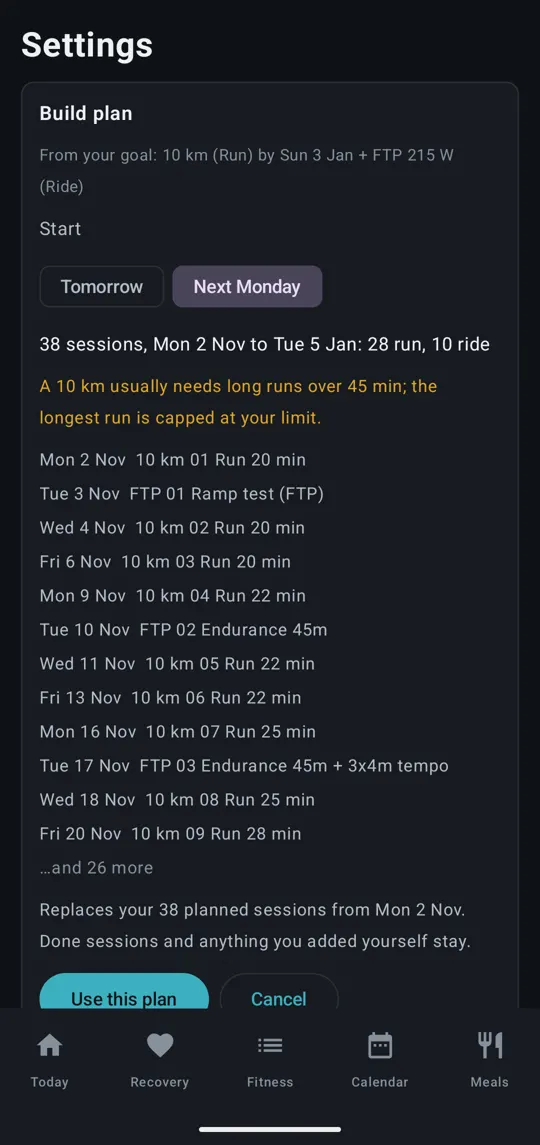
The new sessions go to your intervals.icu calendar. If you’ve linked a watch or a training app to intervals.icu, they reach it at its next sync.
How the week is laid out
- Your main sport gets about 60% of your training days, spread through the week.
- A second sport fills the remaining days. Strength or circuits add-ons take 1 or 2 days.
- Runs and strength sessions never fall on consecutive days. Walks and rides may.
- Nothing is ever planned on a rest day.
- For an event, the day before stays clear and the last session before it is an easier taper.
Rest days
Set your rest days in Settings → Rest days. Tap the days, then Save rest days. If any planned sessions are already on those days, the app shows where they would move before anything changes; tap Save to confirm. Anything you do on a rest day still counts towards your training load.
Delete plan
Delete plan removes every planned session from today onwards that isn’t done. The app asks first and tells you how many sessions will go. Tap Yes, delete to confirm. Done sessions, your activities and one-off sessions stay.
Suggestions: when the app proposes a change
After each sync, the app checks your plan against what you’ve actually done. When it finds something, it shows a pop-up titled The app suggests a change, one at a time. Each pop-up says what happened and what would change.
- Tap Yes, change it to apply the change.
- Tap No, keep my plan to leave things as they are. The app remembers your answer and won’t ask the same question again.
Nothing changes unless you say yes.
| Suggestion | When it appears | What “yes” does |
|---|---|---|
| Missed: … | A planned run or walk (or a ramp test) in the last few days wasn’t done. | Moves it to the next free day. If later sessions have to shift, they’re listed. |
| Extra … on … | You did a run or walk on a day without one planned. | Counts it as your next planned session, so the plan moves on from there. |
| FTP: … W | A recent ramp test, or rides that show more than your FTP setting. | Updates your FTP in intervals.icu. Ride targets follow it. |
| Time for a ramp test? | Your last ramp test was over 6 weeks ago, or you’ve never done one, and you ride regularly. | Turns one of your coming easy rides into a ramp test (about 25 minutes). |
| Readiness …: ease tomorrow? | Your readiness is under 50 and tomorrow is a hard ride. | Swaps it for an easy endurance ride of the same length. |
| Jog speed: slow to … kph? or up to … kph? | After a run that followed the plan, your heart rate on the jogs says the speed should change. | Changes the jog speed in every run still to come. |
Some details:
- Jog speed compares your heart rate with the top of your Zone 2. More than 10 bpm over means 1 kph slower; more than 3 bpm over means 0.5 kph slower. If every jog finished at least 5 bpm under, it suggests 0.5 kph faster, but only after jogs of 3 minutes or more, because heart rate takes a while to catch up.
- Ramp tests aren’t suggested if a health tick rules out hard efforts, while you’re recovering, or when one is already planned in the next two weeks.
- FTP from ordinary rides only ever goes up. Only a ramp test can lower it.
Doing a session: runs and walks
Tap ▶ Start on phone on a run or walk. The player takes over the whole screen, so nothing can be tapped by accident. Tap End at the top to leave at any time.
Before you start
- Choose Treadmill or Outside. The app remembers your choice for next time.
- Optionally connect a Heart-rate sensor (optional) and, indoors, Treadmill control (optional) (both explained below).
- Start recording on your watch, if you use one.
- Tap Start.
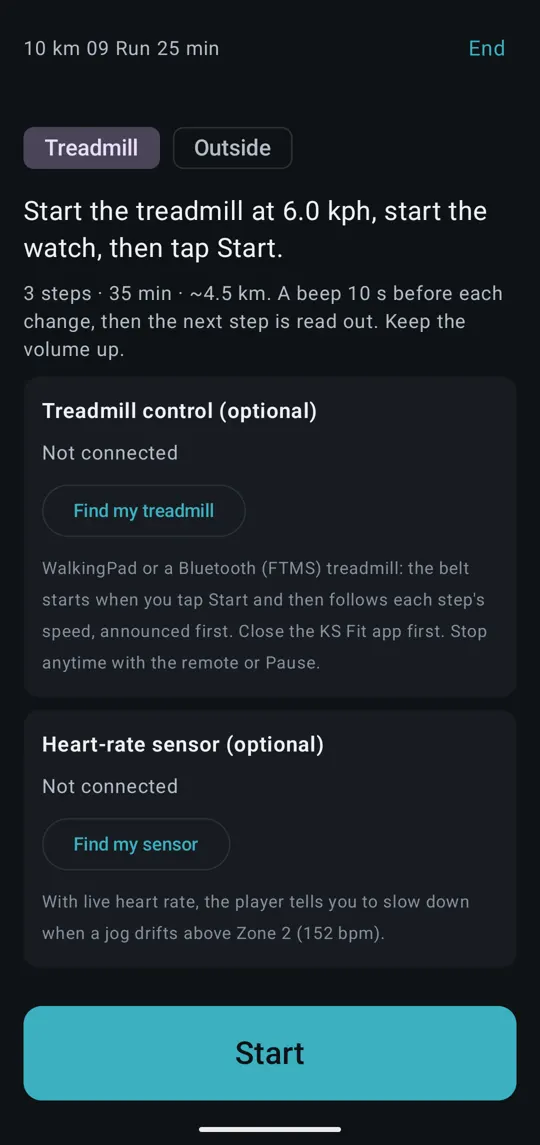
The start screen shows the number of steps, the total time and the estimated distance.
During the session
- STEP … OF … and the step name, in big type.
- The speed to set (on a treadmill), or your pace per kilometre (outside).
- A countdown for the step, and the next step underneath.
- −0.5 kph and +0.5 kph buttons on a treadmill. Use them when you change the belt speed yourself; the change carries on to later steps of the same kind.
- Your heart rate, if a strap or watch is connected. It turns red above the top of your Zone 2.
- Pause / Resume and Next at the bottom.
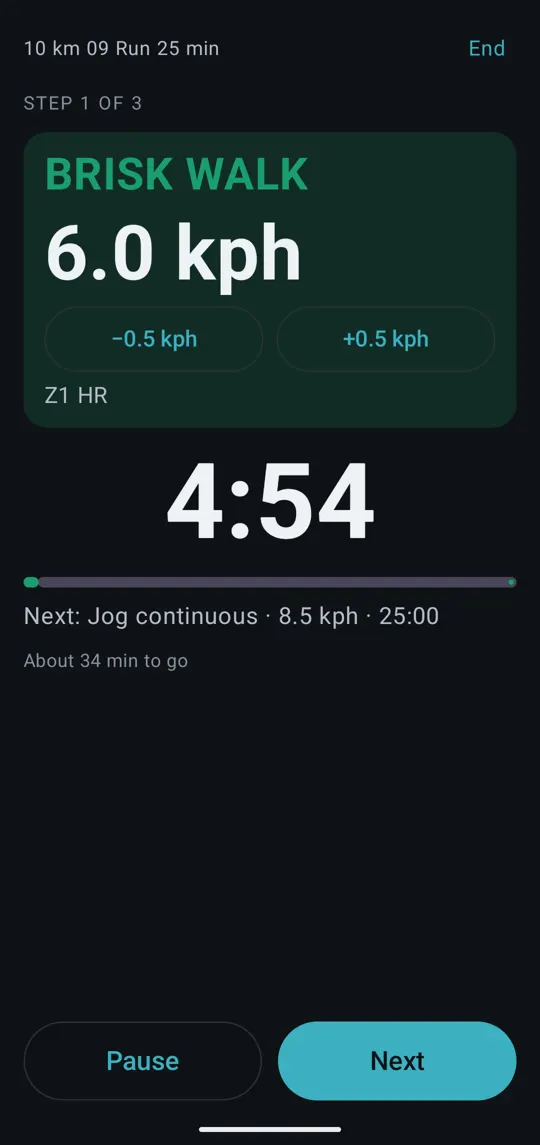
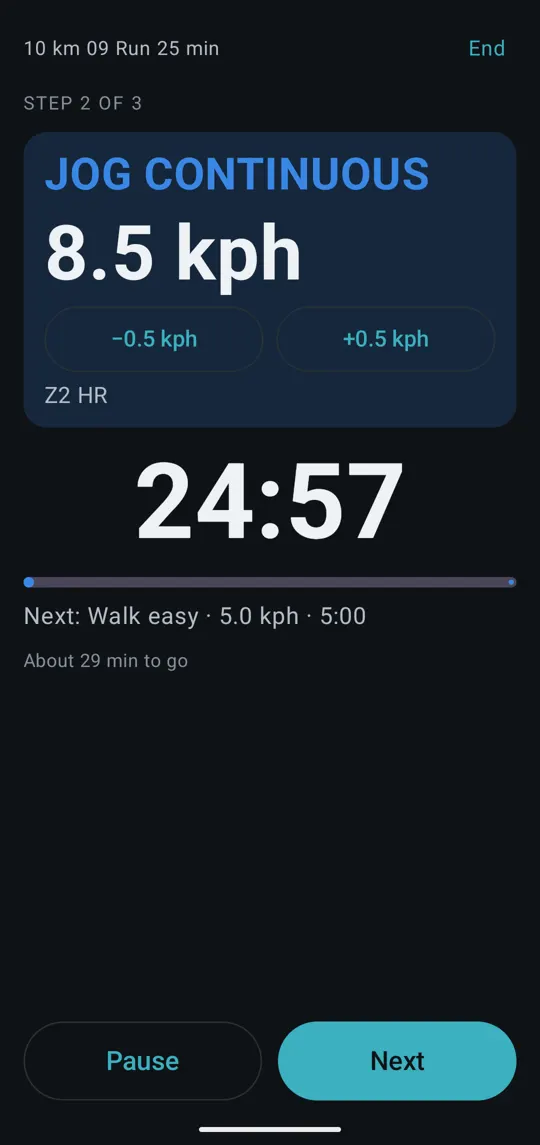
A beep and a buzz come 10 seconds before each change, then the next step is read out. With music playing through headphones, the music dips while the app speaks.
The screen stays on during the session. Keep the volume up.
Estimated distance
Each run and walk shows an estimated distance, for example “35 min · ~2.9 km”, so you can pick a route before you head outside. It’s worked out from each step’s time and planned speed.
Outside: phone GPS
Outside, the phone measures your pace with its own GPS. The first time, Android asks for location permission; if you refuse, the player goes back to treadmill mode.
- The start screen shows the GPS status: “Waiting for GPS…”, “GPS weak”, or “GPS ok”. Wait for GPS ok if you can.
- Jogs say “Easy pace, keep your heart rate under …” instead of a speed. Brisk walks say “you can talk, but not sing”.
- A minute into each jog or brisk walk, and then every 3 minutes, the app reads out your pace and heart rate.
- At the end, the distance and average jog pace are added to the activity’s notes once your watch’s recording reaches intervals.icu.
Leave the phone's screen on when you run outside. The player keeps it awake for you; if you lock the phone, GPS can stop.
The voice coach
The player talks to you by name: a hello at the start, short encouragement before jogs, “You’re halfway there” at the halfway point, “Last one, finish strong” on the final jog, and “Workout complete. Well done” at the end.
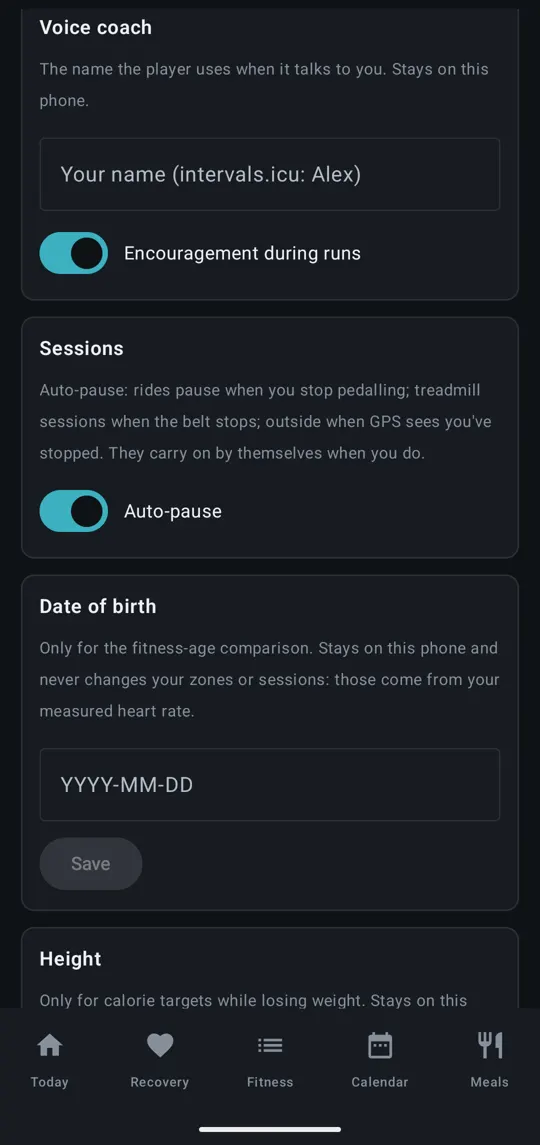
To hear only the instructions, switch off Encouragement during runs in Settings → Voice coach.
Heart-rate strap
Under Heart-rate sensor (optional), tap Find my sensor, then tap Connect: … next to your strap. Wear the strap first so it wakes up. Next time it reconnects by itself.
With live heart rate, if a jog drifts above your Zone 2 for a while, the app tells you to slow down (by half a kilometre per hour on a treadmill, or to ease off or walk for a bit outside).
If you have the watch app (see The watch app) and no strap, your watch’s heart rate is used instead.
Auto-pause
Auto-pause is on unless you switch it off in Settings → Sessions.
- On a controlled treadmill: the session pauses when the belt stops (from its remote or the safety clip) and carries on when the belt starts again.
- Outside: it pauses when GPS shows you’ve stopped for about 5 seconds, and carries on when you move.
The app says “Paused.” and “Go.” Only an auto-pause carries on by itself. If you tap Pause, the session waits for you to tap Resume.
Treadmill control
The app can set the speed of a KingSmith WalkingPad (A1, R1, R1 Pro) or any Bluetooth FTMS treadmill.
- Close the KS Fit app (only one app can control the treadmill).
- Switch the treadmill on.
- In the player, choose Treadmill, then under Treadmill control (optional) tap Find my treadmill.
- Tap Connect: … next to your treadmill.
What the app does, and doesn’t do:
- It never starts the belt by itself. The belt starts only when you tap Start.
- After that, the belt follows each step’s speed. Each change is announced first, with a beep 10 seconds before.
- Speeds are capped at the session’s fastest speed plus 1 kph, and never above 10 kph. The cap is shown on screen.
- Pause and End stop the belt. Resume starts it again.
- −0.5 kph and +0.5 kph change the belt too.
- If the connection drops, the belt keeps its speed. Use the treadmill’s own remote to stop.
- During the session you’ll see the belt’s actual speed, distance and step count.
If your treadmill connects but doesn’t respond, tap Send the Bluetooth log on the start screen and send it to support.
Finishing
At the end, Done appears. Stop and save the activity on your watch, then tap Close. Rate the session in the app once it has synced (the How hard was it? panel on Today).
On a treadmill, the speeds you actually used are added to the run’s notes.
Rides
For a ride with power targets, ▶ Start on phone opens the ride player. The app controls your smart trainer, records the ride, and saves it to intervals.icu. Don’t record the ride on your watch as well.
Close the Wahoo app, Zwift or any other trainer app first. Only one app can control a trainer at a time.
Connecting
The start screen shows the number of steps, the length and your FTP. It has three devices:
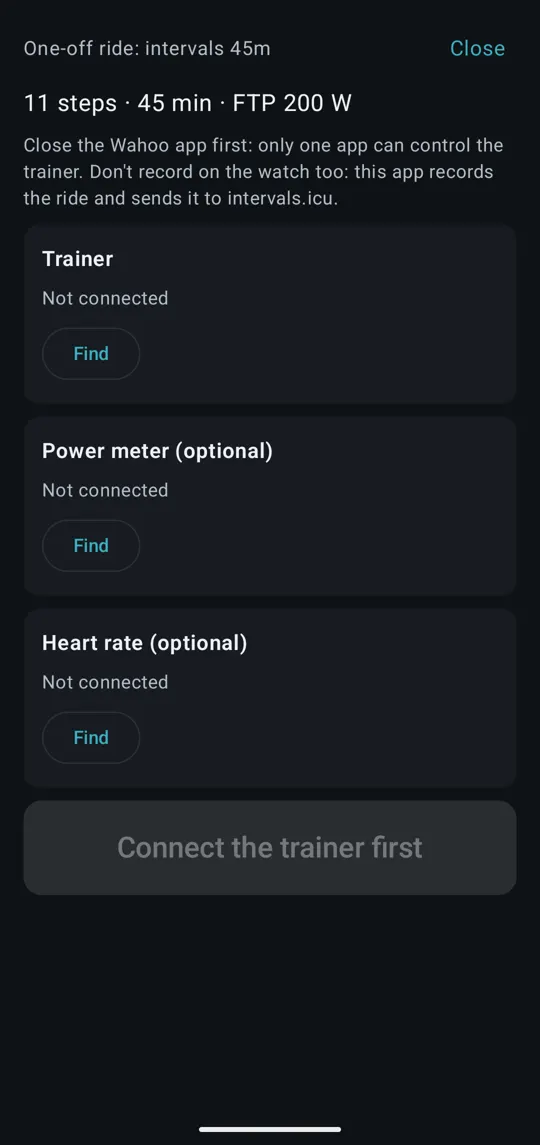
- Trainer: tap Find, pedal a few turns to wake the trainer, then tap Connect: …. Wahoo KICKR and KICKR Core, and FTMS trainers such as Tacx and Elite, are supported.
- Power meter (optional): tap Find, turn the cranks to wake it, then Connect: ….
- Heart rate (optional): your heart-rate strap.
The app remembers your devices. Start is available once the trainer is connected.
During the ride
- The step name and target W in big type, next to your power averaged over 10 seconds (you · 10 s). Your number is green within 5% of the target, amber below it and red above it.
- Behind the numbers, a graph of the whole workout: each step’s target as a block, a line where you are, and your power traced over the part you’ve ridden.
- Power now, Cadence and Heart underneath.
- A countdown for the step, the next step, and the time to go.
- −5 % and +5 % make every target easier or harder for the rest of the ride.
- Pause sets the trainer to zero; Resume carries on. Skip jumps to the next step.
The trainer works in ERG mode: it holds you at the target power whatever your cadence. Ramps rise smoothly second by second. A beep comes 10 seconds before each change, and each new step is read out with its watts and length.
Power meter and power match
With a power meter connected, the recorded power and cadence come from the power meter, and the screen shows power as W · crank. The app also adjusts the trainer so that your power meter reads the target (“power match”). This means your FTP, ramp tests and every ride are measured the same way, at the cranks.
Auto-pause on rides
If Auto-pause is on (Settings → Sessions), the ride pauses after about 3 seconds without pedalling: the clock, the recording and the step timer all stop. Start pedalling to carry on.
Saving the ride
At the end you’ll see your time, average power, average heart rate and distance.
- Save sends the ride to intervals.icu, and to Strava if you’ve connected it (see Connections). If you’re offline, the ride is kept on the phone and sent at the next sync.
- Share file… sends the ride file to another app, for example Google Drive or email, or a training app that imports files.
- Close without saving discards it.
Rides outside
The app doesn’t control outdoor rides. Record them on your watch or bike computer as usual.
Strength and circuits
The strength player
Strength sessions open in their own player.
The start screen lists every exercise with its sets, reps and your last weight, and suggests a 5-minute warm-up. For Easing back in sessions it reminds you to go slowly and stop if pain increases.
Tick I’m recording this on my watch if you’re also recording the session on your watch. The log is then added to that recording when it syncs. If you leave it unticked, the app saves the session to intervals.icu itself.
Tap Start. For each set you’ll see:
- EXERCISE … OF …, the exercise name, Set … of … and the target (for example 8 to 12 reps);
- a short form cue;
- Weight, with − and + buttons (1 kg steps up to 10 kg, then 2 kg steps);
- Reps done, with − and + buttons.
Tap Set done. A spoken REST timer counts down, with a beep near the end and “Go” when it’s time. Tap Skip rest to start sooner.
For holds such as a plank, tap Start the hold and a countdown runs. One-sided holds tell you when to switch sides.
At the end, the app shows what you did and next time’s weights. When every set of an exercise reaches 12 reps, it suggests going up one step. Tap Save and close. Your weights are remembered for each exercise on the phone.
How strength sessions are built
- The add-ons choose the movements: Upper body means push and pull; Legs means squats, hinges and step-ups; Core adds core work. None of these, or all three, means full body.
- Sessions alternate between two versions, A and B, for variety.
- Two sets in the first week, then three, with an easier week every fourth week. Reps are 8 to 12; holds start at 30 seconds and get a little longer each week.
- Sessions are trimmed to fit your Longest session limit.
Gentle and joint-friendly options
Health ticks change the exercise choice. Knees or hips leaves out deep squats; Back pain leaves out heavy hinges, overhead presses and loaded carries and adds core work; Pregnancy leaves out exercises lying on your back. Easing back in uses only gentle exercises for the area you picked: 2 sets of 10 to 15 slow reps or short holds, going to 3 sets from the third week, with short rests.
Circuits
Circuits play in the timed player, like a run or walk. Each station (for example squats, push-ups or step-ups) has 45 seconds of work and 15 seconds to move on, with a minute’s rest after each round. Each station is read out, with a beep 10 seconds before the next.
One-off sessions
Got some spare time? Add a one-off session, with or without a plan. One-offs never change your plan, and Build plan, Delete plan and the suggestions leave them alone.
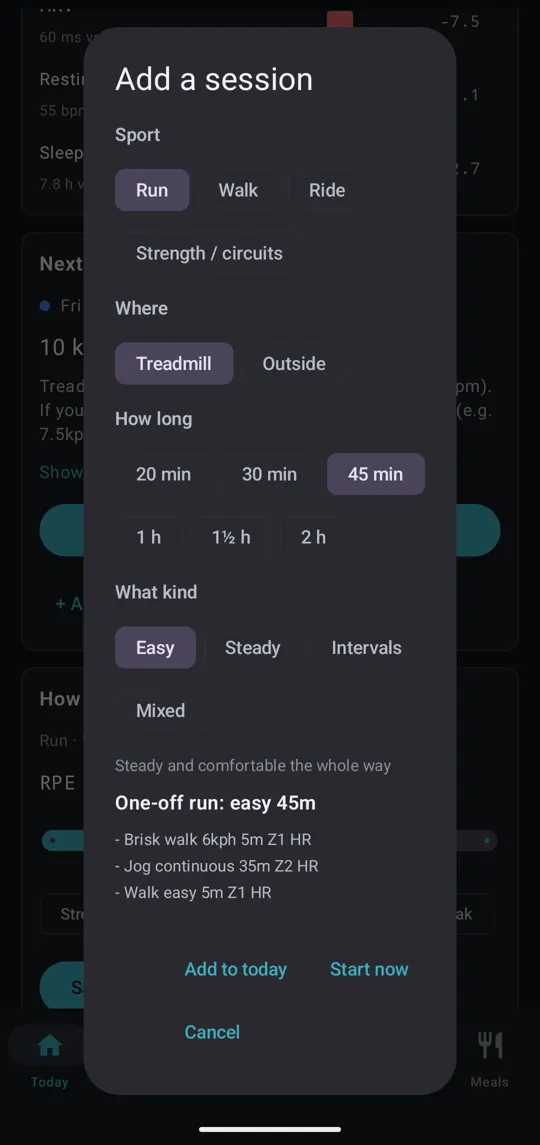
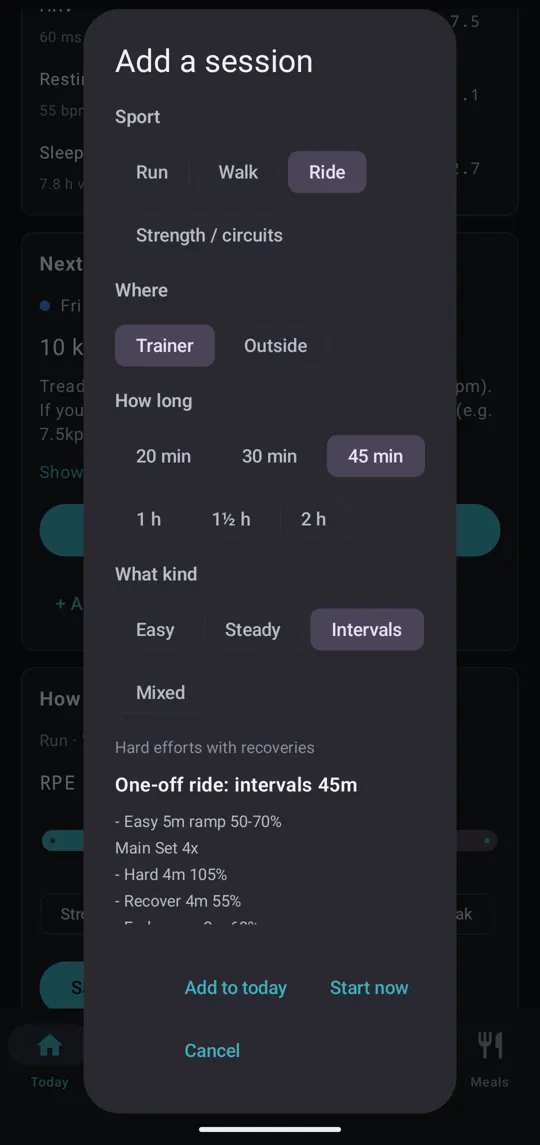
- Tap + A one-off session today on Today, or + Add a one-off session on any day from today on in the Calendar.
- Choose the Sport: Run, Walk, Ride or Strength / circuits.
- Choose Where: Treadmill (or Trainer for a ride) or Outside.
- Choose How long: 20 minutes to 2 hours.
- Choose What kind:
- Easy: steady and comfortable the whole way.
- Steady: a solid middle section, still controlled.
- Intervals: hard efforts with recoveries.
- Mixed: mostly easy, with a few short surges.
- Check the preview of the steps.
- For today, tap Start now to open the right player straight away, or Add to today to put it on your calendar. For another day, tap Add to ….
For Strength / circuits, Easy or Steady gives a strength session, and Intervals or Mixed gives a circuit.
Your health settings limit the choices. With a heart or pregnancy tick, only Easy and Steady are offered; when easing back in, only Easy; with no running, there’s no run option; with asthma, the warm-up is longer.
The watch app
If you have a Wear OS watch, such as a Samsung Galaxy Watch, the Training watch app shows your run, walk or circuit session on your wrist in big type. It mirrors the phone: the phone still runs the session and speaks the instructions.
Installing
The watch app is a separate app called Training, installed on the watch. It must be the version that matches your phone app. Once both are installed, check the link from the phone: open Settings → Watch data and look under Watch app. Your watch should show “Training watch app found ✓”.
Using it
- Open Training on the watch. While no session is running it shows “Start a session on your phone: it shows up here”, your heart rate, and the link status, which should read “Phone ✓” with your phone’s name.
- The first time, allow the watch to use its heart-rate sensor.
- On the phone, open a run, walk or circuit session and tap Start. The watch app opens and shows the session. (If it doesn’t open by itself, open it on the watch.)
What it shows
- The step number (for example “3 / 12”), and PAUSED when paused.
- The step name, in the colour of the sport.
- The speed, or your pace outside, in big type.
- The time left in the step, turning amber in the last 10 seconds.
- Your heart rate, green, or red above the top of your Zone 2.
- The next step.
The watch buzzes 10 seconds before each change, and gives a longer buzz when the step changes. The screen stays on during the session.
The three buttons
- ❚❚ / ▶: pause or resume.
- ⏭: skip to the next step.
- ■ (red): stop the session. On a controlled treadmill, this stops the belt too.
Each press gives a short buzz. The buttons act on the phone.
Heart rate from the watch
While the watch app is open, it sends your heart rate to the phone every couple of seconds. If no heart-rate strap is connected, the player uses the watch’s heart rate, including for the “slow down” coaching.
Ending
When the session ends on the phone, for any reason, the watch shows Done for a few seconds and then closes.
The watch app shows runs, walks and circuits. Rides and strength sessions show on the phone only for now. The watch app doesn't record the activity: keep recording on your watch's own fitness app as usual.
Fitness and FTP
FTP (functional threshold power) is the power you can hold for about an hour. Ride sessions set their targets as a percentage of it, so it needs to be right.
The FTP panels
- Today → FTP (if you ride): your current FTP, watts per kilo, a chart of how it has changed, and “rides say … W” when your recent rides suggest more.
- Fitness → FTP estimate: the app’s estimate from your own rides in the last 6 weeks, with each method that went into it and the ride it came from.
How the estimate works
The app uses up to five methods:
- Ramp test: 75% of your best minute in a ramp test.
- 20-minute power: your best 20 minutes × 0.95.
- Critical power: from your best 5 and 20 minutes.
- Heart rate: on steady rides, the same watts at a lower heart rate means you’ve got fitter.
- intervals.icu eFTP: intervals.icu’s own estimate for your latest ride.
A ramp test from the last week sets your FTP outright, up or down. Otherwise the estimate is the average of the others, but never below the power you’ve actually held. Ordinary rides only ever raise FTP, and only by 3% or more. That’s because in ERG mode the trainer holds you at the target, so ordinary rides can under-read your FTP but never over-read it.
When there’s a reason to change, the app offers the new FTP as a suggestion (see Suggestions).
If your rides have no power data in intervals.icu, the FTP panel says so. A ramp test recorded with power will set it.
The ramp test
A ramp test is a short ride, about 25 minutes, where the power rises step by step until you can’t keep going. It’s the most reliable way to set FTP. The app suggests one every 6 weeks or so if you ride regularly (unless a health tick rules out hard efforts). Ride it in the ride player with the trainer in control.
Meals and weight
The meal suggestions are simple starting points, not a diet. They follow your training: more carbohydrate around hard sessions, less on rest days.
The Meals tab
- The day strip: the next 7 days. Like the calendar, a filled dot is an activity done and a ring is a session still planned. Tap a day to see it.
- The day’s summary: what kind of day it is (Rest or easy day, Training day or Hard training day), with totals for Carbs, Protein and Water, and Calories if you’re losing weight.
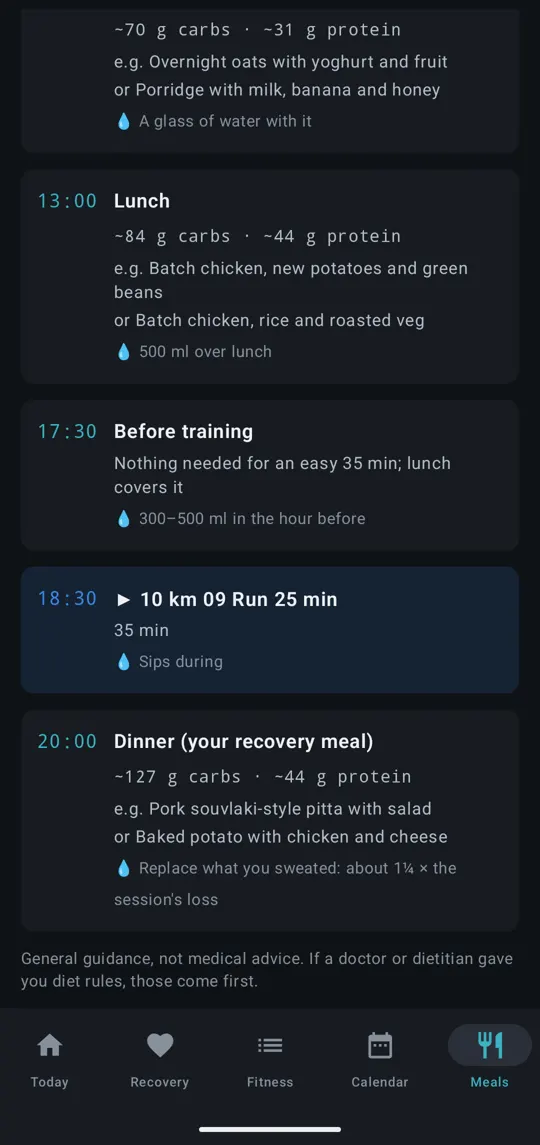
- The timeline: breakfast, lunch, a snack before training on harder days, the session itself, the recovery meal, and dinner, each with a time, rough carbs and protein, and example foods. Activities you did that weren’t planned, such as a long walk, appear at their real time. After a big one, a refuel snack is added if your next meal is a while away.
- Batch cooking: at the weekend, how much chicken or pork to cook for the week’s lunches and dinners. On Wednesday, a reminder to thaw the frozen half.
Set your usual training time and meal times in Settings → Training and meal times. Use − and + to move each by 30 minutes. The timeline is built around them.
How the numbers are worked out
- Carbohydrate comes from the energy you actually burn. Easy efforts burn mostly fat, so a long easy walk is a training day, not a hard one. Done sessions use your watch’s calories; planned ones are estimated.
- Protein is 1.6 g per kilo of body weight, or 1.3 g/kg with the Kidney stones tick.
- Water: a base of 2 litres a day (2.8 with Kidney stones), plus 1¼ times what you sweat. Sweat is estimated from how hard and how long you trained.
Meal notes on your intervals.icu calendar
At every sync, each of the next 7 days gets a note on your intervals.icu calendar, next to that day’s session. Its title is a summary, for example “Meals: 323 g carbs · 108 g protein · 3.1 L”. Open it to see the day’s timeline. The notes are updated whenever the day changes. They aren’t sent to your watch.
Weight
The Weight panel on Recovery appears when you have a weight goal or have logged weigh-ins.
- To log a weight, type it in Today, kg and tap Save weight.
- To use a smart scale that writes to Health Connect, tap Use a smart scale and allow access. Weigh-ins then arrive by themselves.
Either way, weigh-ins are saved to intervals.icu. Weigh in 2 or 3 mornings a week, after the toilet and before breakfast.
The panel shows your latest weight, your 7-day average, the change on the week before, when you should reach your goal, a chart, and advice:
- losing more than 1% a week: eat a little more (about 200 kcal a day);
- up 0.2 kg or more: one week can be water; if it holds, trim about 150 kcal a day or add a walk;
- flat for a week: hold steady one more week.
Calorie targets and safety limits
With a Lose weight goal or the Lose some weight add-on, the Fuel today panel and the Meals tab show calories to eat, calories burned, and the deficit.
- The aim is 0.5 kg a week for a weight goal, or 0.25 kg as an add-on. A goal date can raise it, but never above 1% of your body weight (or 1 kg) a week.
- The deficit is halved on hard training days.
- There’s no deficit the day before or on an event day, while you’re recovering (Easy sessions only until), or with the Pregnancy tick.
- The target never drops below your resting energy, and never below 1,500 kcal for men or 1,200 kcal for women.
- A weight goal also adds circuits sessions to help you keep muscle.
For a better calorie estimate, set your Height in Settings. It’s used only for this and stays on your phone.
Health data from your watch
Some watches don’t sync to intervals.icu themselves, for example Samsung Galaxy Watches and Fitbit. Their phone apps can write your data into Android’s Health Connect, and Training can pick it up from there and send it to intervals.icu.
Setting it up
- Samsung: in Samsung Health, go to Settings → Health Connect and allow Samsung Health to write your data. (Other watch apps have a similar setting.)
- In Training, open Settings → Watch data and tap Connect watch data.
- On Health Connect’s screen, tick the types of data you want to share.
The app works with whatever you allow. To change it later, tap Change what’s shared.
If Health Connect isn’t on your phone, the panel says so. Install it from the Play Store.
What is read
The app can read steps, heart rate, resting heart rate, HRV, sleep, SpO₂, VO2max, body fat, workouts, distance and calories.
What is sent to intervals.icu
At every sync:
- Daily figures (steps, sleep, resting heart rate, HRV, sleeping heart rate, SpO₂, VO2max and body fat) are sent for each day, but only where intervals.icu has nothing for that day. If your watch already syncs to intervals.icu directly, nothing is overwritten.
- Workouts of 5 minutes or more from the last 14 days become activities in intervals.icu, with heart rate and distance. A workout is skipped if intervals.icu already has an activity starting within 10 minutes of it. Each workout is sent only once.
After each read, the panel shows how many of the last 30 days had each type of data, and how many days and workouts were sent. This is a quick way to see what your watch actually provides: not every watch records HRV or resting heart rate.
Weight and blood pressure
Weight from a smart scale is connected from the Weight panel on Recovery (Use a smart scale). Blood pressure is set up separately (see Connections).
Events to train for
Looking for something to aim at? In the Calendar tab, tap Find an event to train for.
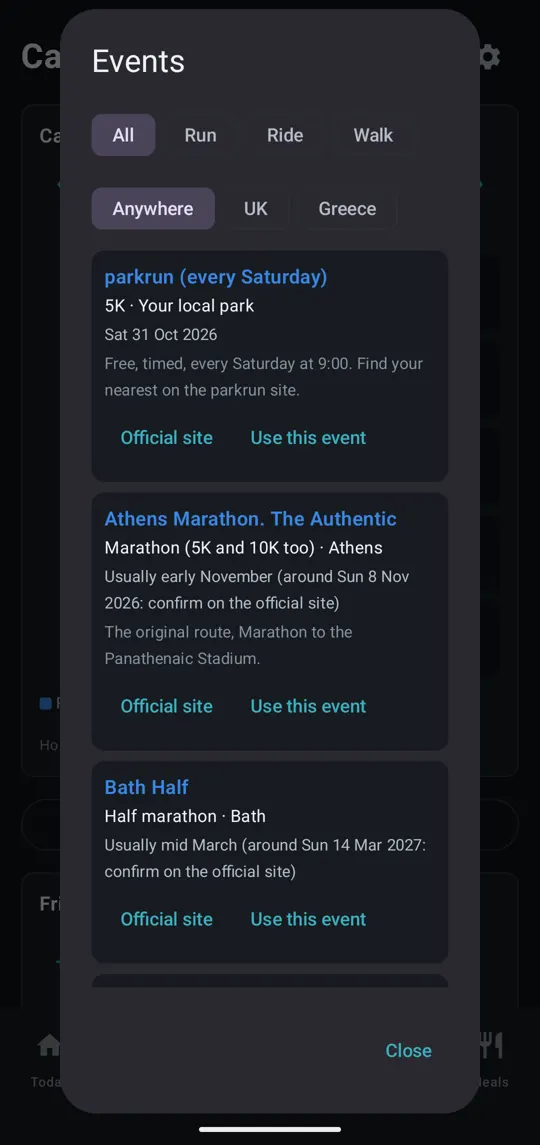
The list has well-known running, cycling and walking events in the UK and Greece, from parkrun and 10Ks to marathons and sportives. Filter by sport (All, Run, Ride, Walk) and by region (Anywhere, UK, Greece). Events are sorted by their next date.
Each event shows its distance, place and when it’s usually held. Tap Official site to read about it, or Use this event to plan for it.
Dates
Organisers often confirm next year’s date only a few months ahead. Where a date isn’t confirmed yet, the app shows the usual time of year, for example “Usually mid June (around Sun 13 Jun 2027: confirm on the official site)”.
Always check the date and entry details on the event's official site before you enter or build a plan.
Use this event
The date is filled in for you; change it if you need to. Then:
- Make it my goal: your main goal becomes this event, with its sport, distance and date. Your other goal settings stay. Then go to Settings → Your goal and tap Build plan.
- Add to calendar: puts the event on your intervals.icu calendar. It shows with a 🏁 in the day’s panel in the Calendar.
Connections
Open Settings to manage what the app is connected to.
intervals.icu
The intervals.icu connection panel shows your Athlete ID, that your API key is saved (masked), and the time of the last sync.
- Change key: enter a new Athlete ID or API key.
- Disconnect: removes your key and the app’s copy of your data from the phone. Your data on intervals.icu isn’t touched.
Strava
Rides you record in the ride player always go to intervals.icu. You can also send them to Strava.
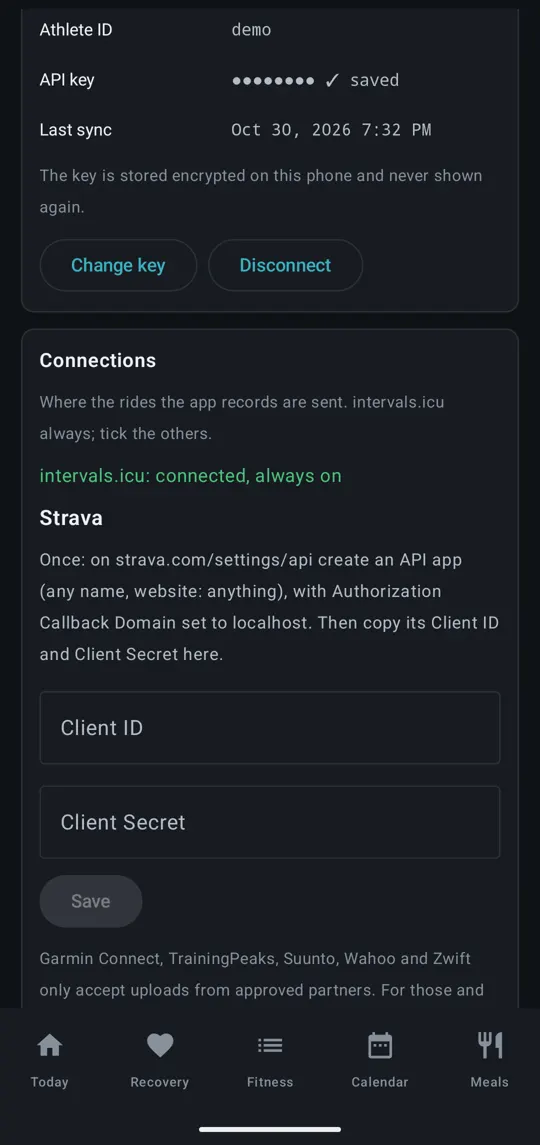
Strava doesn’t offer personal keys the way intervals.icu does, so for now each person sets up their own small Strava “API app”. You only do this once.
- On a computer, go to strava.com/settings/api and create an API app. Any name and website will do. Set Authorization Callback Domain to
localhost. - Copy its Client ID and Client Secret.
- In Training, open Settings → Connections, paste them in, and tap Save.
- Tap Connect Strava and approve on Strava’s page. You’ll come back to the app.
Once connected, the panel says “Connected as …”. The switch Send my recorded rides to Strava is on by default. Tap Disconnect Strava to stop.
If an upload fails (for example you’re offline), it’s retried at the next sync. A ride Strava already has is quietly skipped.
If intervals.icu is also set up to import your activities from Strava, the same ride may arrive twice. intervals.icu usually spots the duplicate.
Garmin Connect, TrainingPeaks, Suunto, Wahoo and Zwift only accept uploads from approved partners. To send a ride to those, use Share file… at the end of the ride.
Blood pressure (Withings and others)
The Blood pressure (Withings via Health Connect) panel reads blood-pressure readings from Health Connect. This is the simplest way to bring in readings from a Withings BPM Core or another meter whose app writes to Health Connect.
- In the Withings app: Profile → Settings → Health Connect, turn it on and allow Blood pressure.
- In Training, tap Connect and allow Blood pressure.
The panel then shows Connected ✓. Your readings appear in the Blood pressure panel on Recovery: the latest and 7-day average, a chart, mornings against evenings, and mornings after hard sessions. Each day’s first reading is saved to intervals.icu.
You can also type readings in by hand in the Blood pressure panel on Recovery (Sys, Dia, Pulse, then Add reading).
Advanced: Withings cloud API instead opens the Withings blood pressure panel, which lets you connect straight to the Withings cloud with your own Withings developer credentials. This also brings in ECG results, as classified by Withings. Most people won’t need it.
Home blood pressure is usually aimed at under 135/85, but your doctor's advice comes first. If a Withings ECG shows possible signs of AFib, share it with your doctor.
Backup and restore
Your training (activities, plan, goal, weigh-ins and wellness) is already safe in intervals.icu. The backup in Settings → Backup covers what’s kept only on your phone:
- your date of birth and height;
- cycle tracking;
- blood-pressure readings you typed in;
- your coach name, strength weights, meal times, player choices, saved heart-rate sensor, and disclaimer acceptances.
It does not include your intervals.icu API key, Strava details or Withings details. Re-enter them after a restore. Health Connect permissions aren’t included either; Android asks again.
Make a backup
- Type a Backup password (8+ characters). Tap Show to check what you typed, and Hide to hide it again.
- Tap Back up.
- Choose where to save the file, for example Google Drive or Downloads.
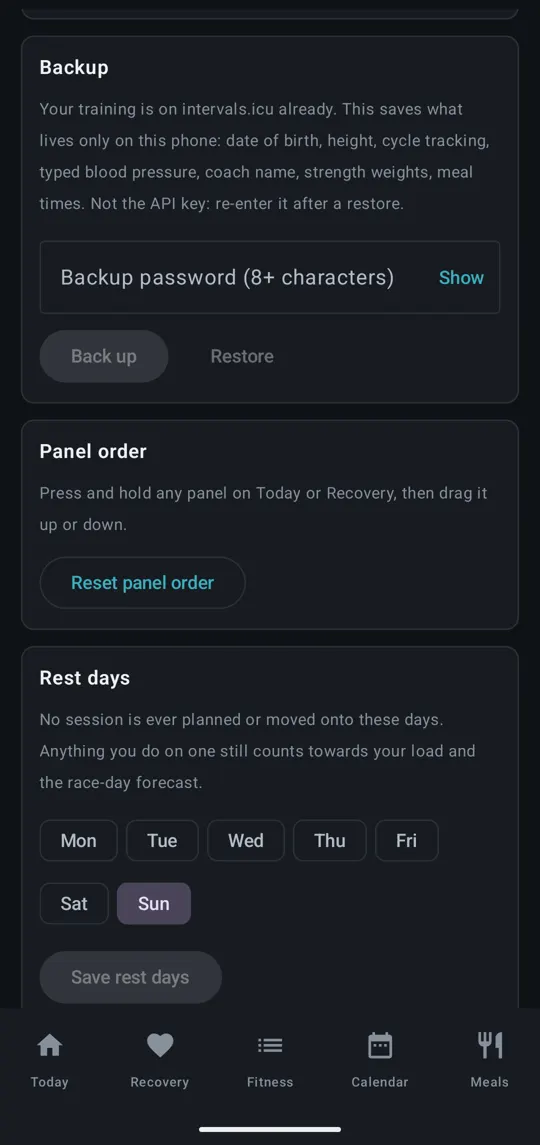
The file is named like training-backup-2026-10-30.trbk and is encrypted with your password.
Keep the password somewhere safe. Without it, the backup can't be opened by anyone, including us.
Restore a backup
- Type the backup’s password.
- Tap Restore and choose the file.
- Tap Yes, restore to confirm. The backup’s settings replace those on the phone.
A wrong password or a damaged file restores nothing. You’ll see “Wrong password, or the file is damaged.”
Settings reference
Tap the ⚙ at the top right to open Settings. The panels, from top to bottom:
| Setting | What it does |
|---|---|
| Your goal | Your main goal, second goal, add-ons and limits. Build plan makes a plan from it; Delete plan removes planned sessions. |
| intervals.icu connection | Your Athlete ID, masked API key and last sync. Change key or Disconnect. |
| Connections | Where recorded rides are sent: intervals.icu always, Strava if connected. |
| Watch data | Reads your watch’s data from Health Connect and sends it to intervals.icu. Also checks the Watch app link: Send test to watch and Check again. |
| Blood pressure (Withings via Health Connect) | Reads blood-pressure readings from Health Connect. Advanced connects to the Withings cloud instead. |
| Training and meal times | Your usual training time, breakfast, lunch and dinner. The Meals tab is built around them. |
| Voice coach | The name the player uses, and Encouragement during runs on or off. Stays on the phone. |
| Sessions | Auto-pause on or off for rides, treadmill sessions and outdoor sessions. |
| Date of birth | Used only for fitness age. It never changes your zones or sessions. Stays on the phone. |
| Height | Used only for calorie targets when losing weight. Stays on the phone. |
| Cycle tracking (optional) | See below. Shown for women’s profiles, or via Women’s health settings at the bottom. |
| Backup | Save or restore a password-protected backup of what’s kept on the phone. |
| Panel order | Reset panel order puts Today and Recovery back to their original order. |
| Rest days | Days when nothing is ever planned or moved to. |
The app’s version is shown at the very bottom.
Cycle tracking
Cycle tracking is optional. Turn on Track my cycle, then choose your Life stage (Regular cycle, Pregnant, Postpartum, Perimenopause or Menopause), your usual cycle and period lengths, and whether you use Hormonal contraception.
With it on:
- a panel on Today shows your phase and day, and a Period today switch. Log period days here; the app learns your cycle length from them;
- on a rough day, it offers to Make it easier or move the day’s session;
- readiness compares you with the same phase in earlier cycles;
- if a period is much later than usual, it gently suggests seeing your doctor, as a missing period while training can mean you’re not eating enough;
- you can record Iron (from a blood test) results, shown on Recovery;
- after two full cycles, Your training by cycle phase appears on Fitness.
Symptoms, notes and iron results are encrypted on your phone. If you switch on Share cycle phase with intervals.icu, only the phase name (period, follicular, ovulation or luteal) is saved to intervals.icu.
Troubleshooting
“No connection to intervals.icu. Showing the last sync.”
The phone couldn’t reach intervals.icu. Check your internet connection and pull down to sync again. Until then, the app shows your data from the last sync.
“intervals.icu refused the API key or athlete ID”
The key or Athlete ID is wrong, or the key has been replaced on intervals.icu. Go to Settings → intervals.icu connection → Change key and enter them again, copied from intervals.icu Settings → Developer Settings.
“Not found on intervals.icu (HTTP 404). Check the athlete ID.”
The Athlete ID is probably mistyped. It starts with an “i”, for example i123456.
“intervals.icu is rate-limiting. Try again in a minute.”
Too many requests in a short time. Wait a minute and sync again.
A “Sync problem” panel won’t go away
Tap Dismiss. It comes back only if the next sync also fails.
The watch shows nothing, or only its idle screen
- On the phone, open Settings → Watch data and look under Watch app.
- “No watch connected to this phone”: check that your watch is connected in the Galaxy Wearable or Wear OS app.
- “connected, but the Training watch app isn’t found”: install the watch app, or update it so it matches your phone app.
- Tap Send test to watch. The watch should open and show “Test from the phone · 6.0 kph · It works”.
- On the watch’s idle screen, check the link status. “Phone ✓” is good. “Phone connected, Training app not found on it” means the phone app needs installing or updating. “Phone not connected” means the watch has lost its link to the phone.
- Make sure the phone and watch apps are the same version.
The watch buttons don’t do anything
Check that the watch shows “Phone ✓” on its idle screen, and that both apps are the same version. Each button press should give a short buzz. If the phone player has already ended, the buttons have nothing to act on.
The trainer isn’t found
- Close the Wahoo app, Zwift or any other app that might be connected to the trainer.
- Pedal a few turns to wake the trainer, then tap Find again.
- Make sure Bluetooth is on. If the status says “Bluetooth is off”, switch it on.
- “That device can’t be controlled: no FTMS or Wahoo trainer service” means the device you picked isn’t a controllable trainer. Pick the trainer itself, not a speed or cadence sensor.
The power meter isn’t found
Turn the cranks to wake it, then tap Find. Trainers are left out of the power-meter list on purpose.
The treadmill doesn’t respond
- Close the KS Fit app. Only one app can control the treadmill.
- Switch the treadmill on before tapping Find my treadmill.
- If it says “Connected, but this treadmill’s controls aren’t recognised”, tap Send the Bluetooth log and send it to support.
- Remember: the belt only starts when you tap Start in the player.
The heart-rate strap isn’t found
Put the strap on (most only wake up when they touch skin), then tap Find my sensor. Many straps can only connect to one device at a time, so disconnect it from your watch or other apps.
Bluetooth and location permissions
The app asks for Bluetooth permission the first time you search for a sensor, trainer or treadmill, and for location permission the first time you choose Outside. If you refused by mistake, open your phone’s Settings → Apps → Training → Permissions and allow them.
Outside, the pace is missing or jumpy
Wait for GPS ok on the start screen before you set off, and keep the screen on. Under trees or between tall buildings, GPS can be weak; the app ignores weak fixes.
“Strava refused the sign-in (HTTP 401)”
Strava’s sign-in has expired or been withdrawn. Go to Settings → Connections, tap Disconnect Strava, then Connect Strava again.
“Strava refused the request (HTTP 403)”
When you approved the app on Strava’s page, permission to upload activities wasn’t granted. Disconnect and connect again, and leave the upload permission ticked.
“Strava is rate-limiting”
Strava limits how many uploads an app can make. The ride is sent at the next sync.
Health Connect: “holds no blood pressure readings”
Health Connect is connected, but the Withings app isn’t writing readings to it. In Health Connect, check the Withings app’s permissions and make sure it’s allowed to write blood pressure.
Watch data: the counts are zero for some types
Your watch app may not write that type of data to Health Connect. Check the Health Connect settings in your watch’s app. Some watches don’t provide HRV or resting heart rate at all.
A ride says “saved on the phone”
“The ride is saved on the phone and will go to intervals.icu at the next sync.” Nothing is lost: pull down to sync when you’re back online.
A planned session didn’t tick off
A session counts as done when that day’s activities of the same sport add up to at least half its planned time (and at least 10 minutes for a run, 15 for anything else). A short walk doesn’t complete a planned hour-long walk, but two walks that add up can. Make sure your activity has reached intervals.icu, then sync.
The player says the session has no steps it can read
The session’s description doesn’t have steps the player understands, for example a session you typed by hand in intervals.icu. Sessions built by the app always work. For rides, the player needs power targets.
Safety and privacy
Training gives general fitness guidance. It is not medical advice, and it doesn’t diagnose, treat or rehabilitate any condition. Check with a doctor before starting a new exercise programme, especially if you have a health condition or an injury, are pregnant, or haven’t exercised for a while. Stop and get help if you feel chest pain, dizziness, unusual breathlessness, or pain that gets worse. You choose whether to follow any plan or suggestion.
In short, on privacy:
- The app has no accounts with us, no advertising and no tracking.
- Your training data goes to your own intervals.icu account, and to Strava only if you connect it.
- Your date of birth, height, typed blood-pressure readings, cycle details and coach name stay on your phone. Your API key and other sign-in details are stored encrypted.
- Location is used only while the outdoor player is open.
For the full details, read the privacy policy and the terms of use.